Samsung 980 Pro died, critical warning 0x09: How I cloned a dying NVMe SSD
7 min read
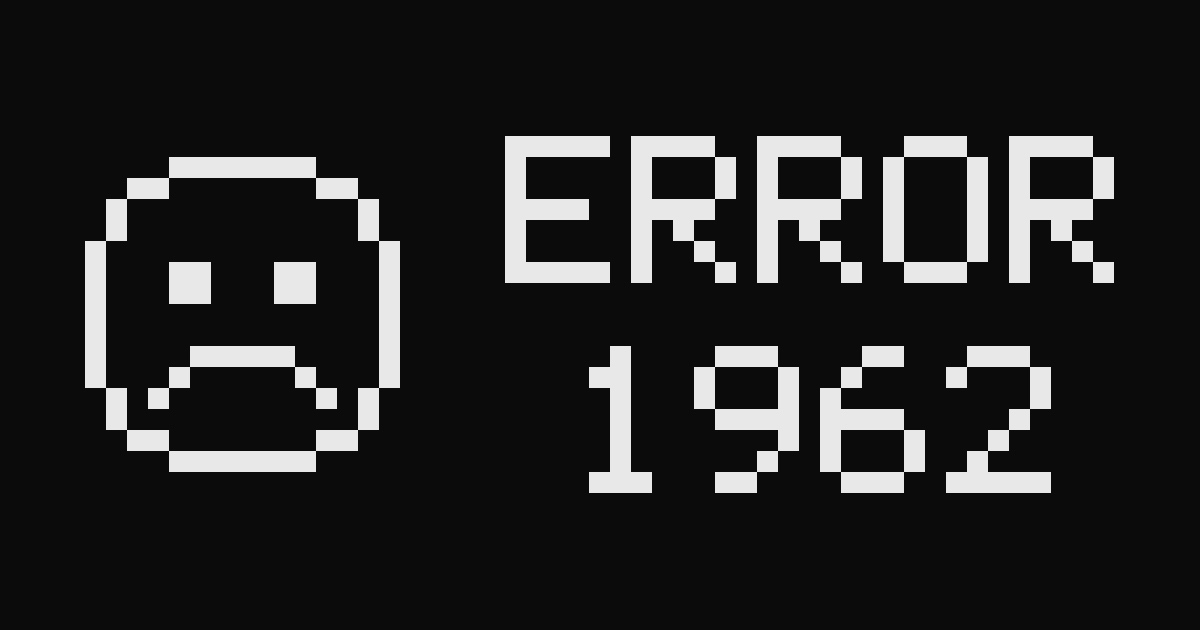
On Monday afternoon all of a sudden my self-hosted server died. I couldn’t access it. My paranoid ass thought it was hackers. I was traumatised with keyloggers and viruses when I was a kid, so these things really freak me out. However, it turned out that the machine died. Phew?
I hurried, cycled from my office to where the server is at. I connected the ancient LCD IPS screen and restarted the computer.
              ▄▄▀▀▀▀▀▀▀▄▄
             █           █
            █   ▄▄   ▄▄   █
            █   ▀▀   ▀▀   █
            █    ▄▄▄▄▄    █
            ▀▄ ▄▀     ▀▄ ▄▀
             ▀▄▄       ▄▄▀
                ▀▀▀▀▀▀▀

     █▀▀▀▀ █▀▀▀▄ █▀▀▀▄ ▄▀▀▀▄ █▀▀▀▄
     █▄▄▄  █▄▄▄▀ █▄▄▄▀ █   █ █▄▄▄▀
     █     █ ▀▄  █ ▀▄  █   █ █ ▀▄
     ▀▀▀▀▀ ▀   ▀ ▀   ▀  ▀▀▀  ▀   ▀

         ▄█   ▄▀▀▀▄  ▄▀▀  ▄▀▀▀▄
          █   ▀▄▄▄█ █▄▄▄     ▄▀
          █      ▄▀ █   █  ▄▀
         ▀▀▀   ▀▀    ▀▀▀  ▀▀▀▀▀

       No operating system found.
Boot sequence will automatically repeat.

  What failed:  Samsung 980 Pro, 2 TB
  Stop code:    CRITICAL_WARNING 0x09
My first thought was a hack, my second an AI worker getting creative with rm -rf. The logs showed nothing. Then the BIOS asked for a password. I typed it three times, it said no, and it halted with a fatal error. (The BIOS has an American keyboard. My password was right and wrong at the same time.)
On Tuesday I booted a rescue stick and asked the disk how it was doing.
Overall health: FAILED.
Available spare: 0 %.
Media placed in read only mode.
Percentage used: 9 %.
So basically it is dead. (More Cursing %&!/i?=!!).
It was a 2 TB Samsung 980 Pro, bought used, made in February 2021. The five-year warranty ended this February, and I had no receipt anyway. So there was nobody to be angry at who would listen, and I was angry. I trusted Samsung.
I didn’t have the money for a new one, but luckily a friend helped me out. Thank you! A 1 TB SSD cost me 200 euros, where the dead one was 2 TB. SSD prices have doubled, thanks to the AI data centres, and that pissed me off too. (Then again, long ago I paid 550 euros for a 500 GB SATA3 SSD. So it isn’t that bad?)
The rescue took three painstakingly-long hours with a bright light to my eyes under a dim lighted room. My wife wasn’t too happy I came home at 22.00 in the evening.
What made working with AI ridiculous was it told me a lot I didn’t need to know, in long careful paragraphs I had to wade through. I typed a command on the server, photographed the screen with my phone, sent the photo to the AI who read its answer on the laptop, and then typed the next command. Rinse and repeat.
Right, left, right, left, right, left.
For two hours my head went back and forth like I was watching tennis.
Somewhere in the second hour I knew what I should have done: Write a bloody script and put that in the USB stick!
Anyway, then the new SSD booted. I typed the passphrase and wrote: server is now working, to AI.
In the end, it was only a matter of time. In early 2023, 2 TB 980 Pros on firmware 2B2QGXA7 or 3B2QGXA7 began failing like mine did: media errors climbing, spare capacity dropping, and then read-only. Samsung confirmed the bug and shipped a fix, 5B2QGXA7. It protects a drive that still works. A dead one stays dead [1][2][3][4][5].
How should I have known about this?!
Appendix: if your SSD goes read-only
Old disk nvme0n1, new SSD sda: check yours with lsblk before anything that writes. I left out the many checks in between and swapped my volume names for vg0. All of it ran as root from a Debian Live stick.
1. Ask the disk how it is
sudo -i
apt update
apt install -y smartmontools nvme-cli gddrescue cryptsetup lvm2 gdisk rsync e2fsprogs
smartctl -a /dev/nvme0n1
Critical Warning should be 0x00. Mine said 0x09: spare below the threshold, and the drive had put itself in read-only mode.
2. Open it read-only, and fake the writes
A dirty ext4 filesystem won’t mount on a read-only disk, so put a writable layer in RAM on top and repair that. If a mount says “Structure needs cleaning”, run e2fsck on its layer.
swapoff -a
blockdev --setro /dev/nvme0n1
cryptsetup open --readonly /dev/nvme0n1p3 oldcrypt
vgchange -ay vg0

for v in root var home; do
  truncate -s 1536M /dev/shm/$v.cow
  L=$(losetup -f --show /dev/shm/$v.cow)
  S=$(blockdev --getsz /dev/vg0/$v)
  dmsetup create snap-$v --table "0 $S snapshot /dev/vg0/$v $L N 8"
done

e2fsck -fy /dev/mapper/snap-root

mkdir -p /mnt/old/{root,var,home}
mount -o ro /dev/mapper/snap-root /mnt/old/root
mount -o ro /dev/mapper/snap-var  /mnt/old/var
mount -o ro /dev/mapper/snap-home /mnt/old/home
3. Build the new disk, with the old UUIDs
Same UUIDs, so fstab, crypttab and GRUB need no edits. If the new SSD shows as 0 B, reseat the cable. Run the LVM part one command at a time: a long && chain stopped halfway for me, silently.
T=/dev/sda
sgdisk --zap-all $T
sgdisk -n 1:0:+976M -t 1:EF00 -c 1:efi   $T
sgdisk -n 2:0:+977M -t 2:8300 -c 2:boot  $T
sgdisk -n 3:0:-512M -t 3:8300 -c 3:crypt $T
partprobe $T; udevadm settle

ddrescue -f -n /dev/nvme0n1p1 /dev/sda1 /root/p1.map
ddrescue -f -n /dev/nvme0n1p2 /dev/sda2 /root/p2.map

cryptsetup luksFormat --type luks2 --uuid "$(cryptsetup luksUUID /dev/nvme0n1p3)" /dev/sda3
cryptsetup open --allow-discards /dev/sda3 newcrypt

N=/dev/mapper/newcrypt
pvcreate $N
vgcreate vg-new $N
lvcreate -L 93G  -n root   vg-new
lvcreate -L 37G  -n var    vg-new
lvcreate -L 8G   -n swap_1 vg-new
lvcreate -L 3G   -n tmp    vg-new
lvcreate -L 600G -n home   vg-new

mkfs.ext4 -U "$(blkid -s UUID -o value /dev/mapper/snap-root)" /dev/vg-new/root
mkfs.ext4 -U "$(blkid -s UUID -o value /dev/mapper/snap-var)"  /dev/vg-new/var
mkfs.ext4 -U "$(blkid -s UUID -o value /dev/mapper/snap-home)" /dev/vg-new/home
mkfs.ext4 -U "$(blkid -s UUID -o value /dev/vg0/tmp)"          /dev/vg-new/tmp
mkswap    -U "$(blkid -s UUID -o value /dev/vg0/swap_1)"       /dev/vg-new/swap_1
4. Copy, then check the copy
The last command is a dry run and should list nothing.
# rsync: -a permissions and times, -H hard links, -A -X ACLs and attributes,
# -x one filesystem, --numeric-ids exact user IDs
mkdir -p /mnt/new
mount /dev/vg-new/root /mnt/new
mkdir -p /mnt/new/boot /mnt/new/var /mnt/new/home /mnt/new/tmp
mount /dev/sda2 /mnt/new/boot
mount /dev/vg-new/var  /mnt/new/var
mount /dev/vg-new/home /mnt/new/home
mount /dev/vg-new/tmp  /mnt/new/tmp

rsync -aHAXx --numeric-ids --exclude=/lost+found /mnt/old/root/ /mnt/new/
rsync -aHAXx --numeric-ids --exclude=/lost+found /mnt/old/var/  /mnt/new/var/
rsync -aHAXx --numeric-ids --exclude=/lost+found /mnt/old/home/ /mnt/new/home/

rsync -aHAXxn --numeric-ids --exclude=/lost+found -i /mnt/old/root/ /mnt/new/ | head
5. Make it boot
--removable writes a fallback boot path, so the firmware finds the disk without a stored entry. Plain grub-install failed for me. exit the chroot before checking paths: I didn’t, and /mnt/new looked empty.
umount /mnt/old/home /mnt/old/var /mnt/old/root
dmsetup remove snap-home snap-var snap-root
losetup -D
vgchange -an vg0
cryptsetup close oldcrypt

umount -R /mnt/new
vgrename vg-new vg0
vgchange -ay vg0
mount /dev/vg0/root /mnt/new
mount /dev/sda2 /mnt/new/boot
mount /dev/vg0/var  /mnt/new/var
mount /dev/vg0/home /mnt/new/home
mount /dev/vg0/tmp  /mnt/new/tmp
mkdir -p /mnt/new/boot/efi
mount /dev/sda1 /mnt/new/boot/efi
for d in dev proc sys run; do mount --rbind /$d /mnt/new/$d; done

chroot /mnt/new
update-initramfs -u -k all
grub-install --removable
update-grub
exit

cd /
umount -R -l /mnt/new
sync
vgchange -an vg0
cryptsetup close newcrypt
poweroff
Then unplug the old disk, put the new one in its place, and boot.
6. After the first boot
lsblk -f | head -20
df -h / /home /boot
systemctl --failed --no-legend
sudo virsh list --all
sudo fstrim -av
References
[1] Puget Systems (2023). Critical Samsung SSD firmware update. https://www.pugetsystems.com/support/guides/critical-samsung-ssd-firmware-update/
[2] Hagedoorn, H. (2023). Samsung issues new firmware to prevent dying 980 Pro SSDs. Guru3D. https://www.guru3d.com/story/samsung-issues-new-firmware-to-prevent-dying-980-pro-ssds/
[3] Hohm, M. (2023). Samsung: Neue Firmware gegen sterbende SSD 980 Pro. PC Games Hardware. https://www.pcgameshardware.de/SSD-Hardware-255552/News/Samsung-Neue-Firmware-gegen-sterbende-SSD-980-Pro-1412617/
[4] Andrews, R. (2023). Samsung SSD failure reports increasing: what is happening? NAS Compares. https://nascompares.com/2023/02/02/samsung-980-pro-970-evo-plus-pm9a1-and-more-reporting-failures-everything-we-know-so-far/
[5] Framework Community (2023). Samsung SSD 980 Pro firmware update on Linux, how? https://community.frame.work/t/solved-samsung-ssd-980-pro-firmware-update-on-linux-how/27046